
You know that feeling when you get the perfect shot of your dog, but when you look at it later, it’s just… meh? The lighting’s weird, there’s a random toy in the corner, or your black lab looks like a shadow with eyes.
I’ve been doing pet photography in San Diego for years, and honestly? A few quick tweaks on your phone can turn a disappointing photo into something you’d actually want to post. We’re talking like five minutes, tops. No fancy software, no YouTube tutorials, just the editing tools already on your iPhone.
Why Bother Editing Pet Photos?
Let me be straight with you. Every professional pet photo you’ve ever seen has been edited. That Instagram post from your favorite pet photographer? Edited. Those prints hanging in the vet’s office? Definitely edited.
Good editing brings out what’s already there. It fixes weird lighting, removes distractions, and makes your pet’s fur look as gorgeous as it does in real life. Think of it like brushing your dog before a photo session. You’re not changing who they are. You’re just showing them at their best.
The difference between a phone snapshot and a photo you’d actually frame often comes down to about three minutes of editing. Worth it? Absolutely.
iPhone Editing Basics (No Extra Apps Needed)
Your iPhone has crazy powerful editing tools that most people ignore. Here’s how to actually use them for pet photos.
Fix the Exposure First
Open your photo and tap “Edit.” See those adjustment sliders? Start with exposure.
Got a black lab who looks like a dark blob? Slide exposure up until you can see the texture in their coat. White cat looking blown out and featureless? Bring it down. You should be able to see individual hairs, not just a solid color mass.
After exposure, bump brightness up slightly. This affects the middle tones and usually makes pet photos feel happier and more alive. Just a touch though.
Make It Pop with Contrast
Contrast separates snapshots from photos that make you stop scrolling. Bump it up somewhere between +10 and +25. Your dog or cat will suddenly look three-dimensional instead of flat.
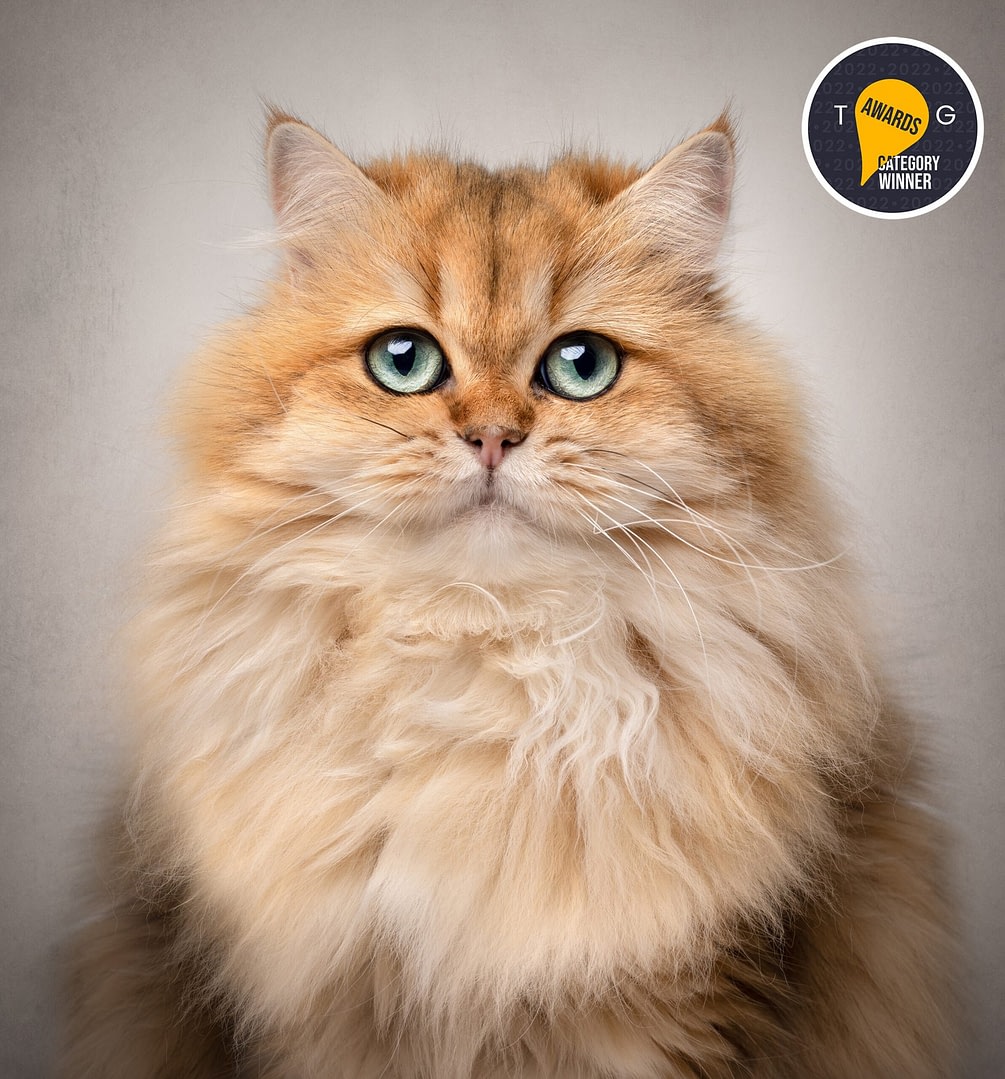
Now try “Definition” (or “Structure” on some phones). This brings out fur texture like magic. You’ll see every whisker, every strand of fluff. But don’t go overboard or it looks weird and artificial.
Get the Colors Right
Saturation is fun but dangerous. Increase it just a little to make colors richer. Your golden retriever’s coat gets that warm honey tone. Your tabby cat’s stripes pop. But push it too far and you get something that looks like a cartoon.
“Warmth” matters more than you’d think. Most indoor lighting skews too blue, making your pet look cold and uninviting. Slide it toward yellow/orange just enough that your dog or cat looks cozy, not like they’re sitting on ice.
Sharpen Those Eyes
Your pet’s eyes should grab attention immediately. Problem is, iPhone’s basic sharpening doesn’t quite get there. Quick fix: add a subtle vignette (darkens the edges). This naturally pulls focus to the center where your pet’s face is.
Want more control? Download Snapseed (it’s free). You can sharpen just the eyes and face while leaving everything else alone. Looks way more professional.
Clean Up the Mess
See that random toy in the corner? The food bowl photobombing your shot? iPhone has a “Retouch” tool that works surprisingly well. Just tap it and paint over the stuff you want gone.
Works best on simple backgrounds. For trickier situations, Snapseed’s healing tool or TouchRetouch (paid app) give you more options.
Apps Worth Downloading
Snapseed (Free and Powerful)
You can download Snapseed from the App Store or Google Play.
I use Snapseed constantly for quick pet photo edits. Here’s my go-to workflow:
Start with “Tune Image” for basic adjustments (exposure, contrast, saturation). Then hit “Details” and bump up both Structure and Sharpening. This makes fur texture look incredible.
But the real magic? Selective editing. Drop a control point on your pet’s eyes and crank up brightness and sharpness. Then drop another on their face. You’re basically dodging and burning like the film photography days, but it takes 30 seconds.
The “Portrait” tool can work on pets too. “Face Spotlight” brightens their face naturally. Even “Skin Smoothing” (used very lightly) can help with certain lighting issues on light-colored dogs and cats.
Lightroom Mobile (Free Version)
Adobe’s Lightroom app has a free version that gives you professional-level color control. The learning curve is steeper than Snapseed, but it’s worth it if you’re serious about editing.
Best feature for pet photos? Selective color adjustment. You can enhance your golden retriever’s coat without touching the green grass behind them. Brighten your white cat without blowing out the wall.
Plus Lightroom’s noise reduction is excellent. Those grainy indoor shots? Lightroom smooths them out while keeping fur detail sharp.
What I’ve Learned from Editing Thousands of Pet Photos
Dial It Back 20%
Biggest mistake I see? Over-processing. When everything is cranked up (saturation, contrast, sharpness), photos start looking fake. Your pet’s fur gets this crunchy, weird texture. Colors look radioactive.
My rule: make your edits, then reduce them by 20%. Hit contrast at +30? Bring it to +24. Pushed saturation to +40? Drop it to +32. This keeps photos looking polished instead of processed.
Eyes Win Every Time
If you only edit one thing, make it the eyes. They should be the brightest, sharpest part of any pet portrait.
I often spend extra time on just the catchlights (those little sparkles in the eyes). Brightening them slightly makes such a huge difference in creating that connection with viewers.
Color Casts Are Sneaky
Indoor lighting wrecks color. Fluorescent makes everything green. Regular bulbs make everything orange. Mixed lighting creates total chaos.
Take time to fix white balance (or “warmth” and “tint” on iPhone). Your dog shouldn’t look like they’re glowing green. Your cat shouldn’t appear orange. If you’re planning to print and frame the photo, getting accurate colors matters even more.
The Background Counts Too
That bright window behind your dog? Darken it. That weirdly warm wall competing for attention? Cool it down.
Subtle vignetting (darkening the corners) keeps focus on your pet. Use it lightly enough that people don’t consciously notice it, but their eyes naturally go where you want them to.
Keep Fur Looking Like Fur
When you sharpen too much, fur stops looking soft and starts looking like wire. Zoom in to 100% while editing and check that fur still has natural texture.
Long-haired dogs and fluffy cats are especially vulnerable. Too much sharpening creates weird halos around them. Better to sharpen selectively on faces and eyes than globally across the whole image.
What Not to Do
Making teeth glow white. A little brightening? Fine. Making them look like they’re lit from within? Creepy.
Accidentally erasing whiskers. When you’re removing stuff near your cat’s face, it’s easy to delete whiskers too. Be careful.
Trying to recover blown highlights. If part of your white dog is pure white with zero detail, you can’t get that information back. It’s gone forever. Better to nail exposure when shooting.
Smoothing fur like it’s skin. Some people run skin-smoothing tools on fur, creating this bizarre plastic look. Don’t. Fur should have texture.
Fake background swaps. Cutting out your pet and dropping them on a beach or whatever almost always looks terrible unless you really know what you’re doing. If the background sucks, crop tighter instead.
Building Your Own Style
If you get into this (and it’s actually pretty fun), try developing a consistent look. Professional pet photographers have recognizable styles you can spot immediately.
Save your favorite edits or create presets in Lightroom. When you nail a workflow that makes your photos look great, use it again. Tweak for each shot obviously, but keep the same basic approach.
My San Diego pet photos tend toward bright, airy, and warm. Reflects our coastal vibe and all that gorgeous natural light we get. Your style might be moodier or more dramatic or super minimal. Just be consistent.
DIY vs. Hiring a Pro
Be realistic about what you’re trying to do. Casual everyday photos for Instagram or texting friends? iPhone editing is perfect. Takes a few minutes and looks great on screens.
But heirloom-quality portraits you’ll print large and hang on your walls? That’s different. Professional cameras capture way more detail and better color. Professional editing goes deeper, with advanced retouching and artistic vision that turns photos into actual art.
Think of it like grooming. You can trim your dog’s nails at home for maintenance. But you hire a professional groomer for the full treatment before special occasions. Same idea with photography.
Quick Workflow (The Short Version)
Here’s how I edit everyday pet photos on iPhone in about three minutes:
- Exposure: up or down until you see fur detail
- Brightness: bump it up slightly
- Contrast: +10 to +20
- Saturation: +5 to +15
- Warmth: shift toward warm (usually)
- Sharpen: focus on eyes
- Clean up: remove obvious distractions
- Vignette: subtle darkening at edges (maybe)
Done. That’s it.
For more control, use Snapseed or Lightroom and add selective adjustments on eyes, face, and color corrections where needed.
The Real Point of All This
Editing isn’t about faking anything. It’s about showing your pet the way they actually look to you. With just a few minutes and your phone, you can turn a decent snapshot into something you’re genuinely proud to share.
Start simple. Master exposure and contrast before worrying about advanced techniques. The more you edit, the faster you’ll get and the better your eye becomes.
And remember what you’re really doing here. You’re preserving moments with your dog or cat. These photos matter because your pet matters. Edit them well, but don’t stress about perfection. The point is capturing their personality, the joy they bring, the love you share.
They won’t be here forever. But with some thoughtfully edited photos, you’ll have beautiful memories that last a lifetime.